Revision:
1.00
Desktop: Yes
Monitored
Remote Control
Two
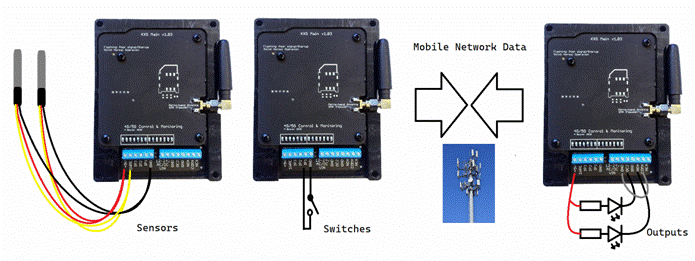
or more iot-portal.com devices are able to create a Monitored Remote Control
system. Unlike a simple remote control, which may or may not result in the
activation of the remote equipment, the iot-portal.com remote control system is
able to check the remote outputs were activated. If they failed to be
activated, an email or SMS can be sent to several users warning them of the
failure.
The
system has unlimited range as long as there is mobile phone coverage at both
ends of the system.
The
system is bi-directional. Any input contact on any device, linked with a common
email address, can activate outputs on another device.
Setup
You
set up the Monitored Remote Control on the device which has the output
terminals you’d like to control. Visit the Live Screen for this device and
click ‘Tools’ at the bottom of the screen. This will reveal the ‘Remote’ button
which takes you to the remote control page.
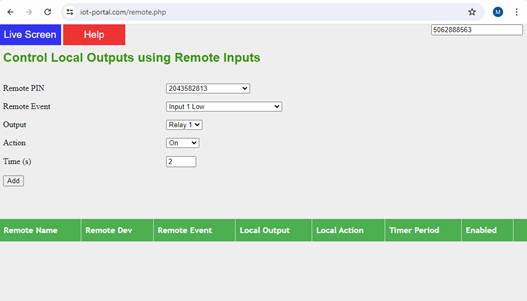
Remote
PIN
This is a selectable list of devices that contain
your email address with ‘Full Access’ permission. If a device you own/manage is
not in the list, ensure your email address is in the Users screen and the
permission is set to ‘Full Access’. It is not sufficient for your phone number
to be in the device.
You should select the device with the inputs you
would like to use to operate this device’s output.
Remote
Event
This a selectable list of events associated with the
device selected in ‘Remote PIN’. There is a comprehensive list with some
options not applicable to every device.
The name of the event is described in this select
box. If the input has been renamed on the Live Screen, this is what will be
presented in this box (i.e. not ‘Input 1 Low’ for example).
Output/Action/Time
Most devices have 2 relay outputs (1/# and 2/*).
This is selected in the output box.
The action selected what you would like to happen
when the input event is triggered:
On – this activates the output relay (i.e. the
COM/NO terminal is connected)
Off – this turns off the output relay (i.e. the
COM/NO terminal is disconnected, COM/NC connected)
Pulse – this activates the output for the period of
time set by the Time text box
Toggle – this will cause the output to change to a
alternate state on each activation
Toggle
mode is not reliable in all circumstances. The output state is set to the
opposite of the previous state the portal set it to the last time the portal
toggled it. If another process has operated the relay in the meantime or last
time the operation failed, it will not change state as expected.
Monitoring
If an activation attempt is made to the local device
but the output terminals do not change, it is possible to get an SMS, email or
even phone call to inform local
device users of the failure.
This can be caused by the device being powered down
or otherwise offline or the local device not replying to the portal within 30s.
On NB-IoT networks, it is possible the data was just
too slow to reach the portal in time. Either way the local device should be
checked.
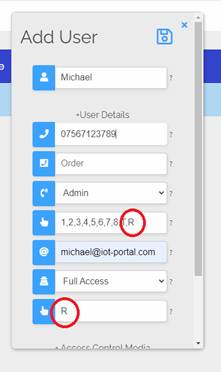
To receive remote control failure messages and
calls, the ‘,R’ character must be present in the event selection boxes on the
Users page.
Either add a new user or select an existing user and
add the ‘,R’ characters as shown. The phone type box should also be set to
‘Call/Text’ as appropriate.
The monitoring message follows the normal user rules
as per any other event.
Security
External
Internet
https://iot-portal.com
devices connect to the portal through a Virtual Private Network (VPN)
connection via the mobile phone network. This is highly secure and all data
travels through the public internet in an encrypted form. The remote devices
will only connect to portal message brokers and will only listen on the portal
private local network. Outside internet traffic cannot send messages to the
device.
Internal Network
Devices
are linked via ‘Full Access’ email address. Any device with your ‘Full Access’
email address will appear in the list of remote devices that can operate the
outputs on your local device.
Entering
your email address as a ‘Full Access’ email address into a device allows you
full admin access using the portal, app and Live Screen. It is possible another
user may add you onto their device without you asking. You will receive an
email with a link to their device giving
you control over their device.
Why
would someone want to do that?
Your
device will now appear on their list of selectable remote devices for operating
a local output on their device. For this reason, emails are sent to ‘Full
Access’ email addresses on the remote devices after monitored remote control is
setup. This email allows you to enable/disable the control. Normally it will be
you who set it up so you will want to enable it.
You
should report any abuse to support@iot-portal.com
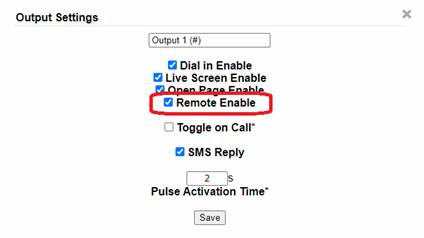
Globally Disabling Remote
Control
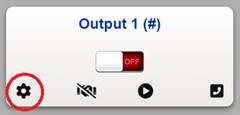
You
can disable remote control for any remote device by visiting the Output
settings control on the Live Screen for each output. By default this is
disabled. It is enabled automatically after you set up the remote control for
that output.
Limitations
Transmitter
end(s)
NB-IoT
networks provide connectivity where other technologies cannot reach. However,
this can come at the cost of increased latency. Most networks will specify latency
on NB-IoT of 1.6s-10s. This however, can be as high as 50s and as low as a few
hundred milliseconds. This can delay operation.
Only
events (as opposed to changes in state) can trigger a remote device. If, for
example, an input is set to hold for 2s (default setting on most devices), the
input would need to be held in this state for 2s before it will transmit an
event to the portal.
Hold
times can be set to 0s but this allows transient fluctuations to trigger
events.
Even
devices with excellent connectivity will occasionally (often several days) have
to re-establish the data connection with the network. This will result in a
normally short period of 10s (but up to several minutes) where the link will be
inactive. Events are queued by the transmitter for when the link is
re-established and will be actioned once the transmitter is back online.
If
a transmitter is lost completely, it will take over 1 hour but less than 2
hours for the ‘Admin’ phone numbers and the ‘Full Access’ email addresses to be
notified.
Receiver
End
After
the portal sends a message to the remote device to change its output state, it
listens for a state change notification from the remote device to confirm
activation of the output. If this does not arrive within 15s, it will request a
state change message.
It
is not possible to determine the desired state of the outputs at this stage.
Therefore, so long as this state change message is received, it is accepted
that the output was activated correctly; i.e. it is online and processing
messages.
Should
an output activation trigger the inputs on the remote device, the input event
will be prioritised and may result in no output state change messages being
sent. Therefore, complex output to input wiring is more likely to result in
erroneous ‘Remote Activation Failure’ messages; even when the operation was
successful.
If
a receiver is lost completely, it will take over 1 hour but less than 2 hours
for the ‘Admin’ phone numbers and the ‘Full Access’ email addresses to be
notified.
Threats
to Existing Installations and Recommended Testing
There
are no potential threats to existing installations or devices beyond the issue
discussed in the security section. No testing is recommended. This system has
been available prior to release of v8 firmware.